Scheduler Calendar
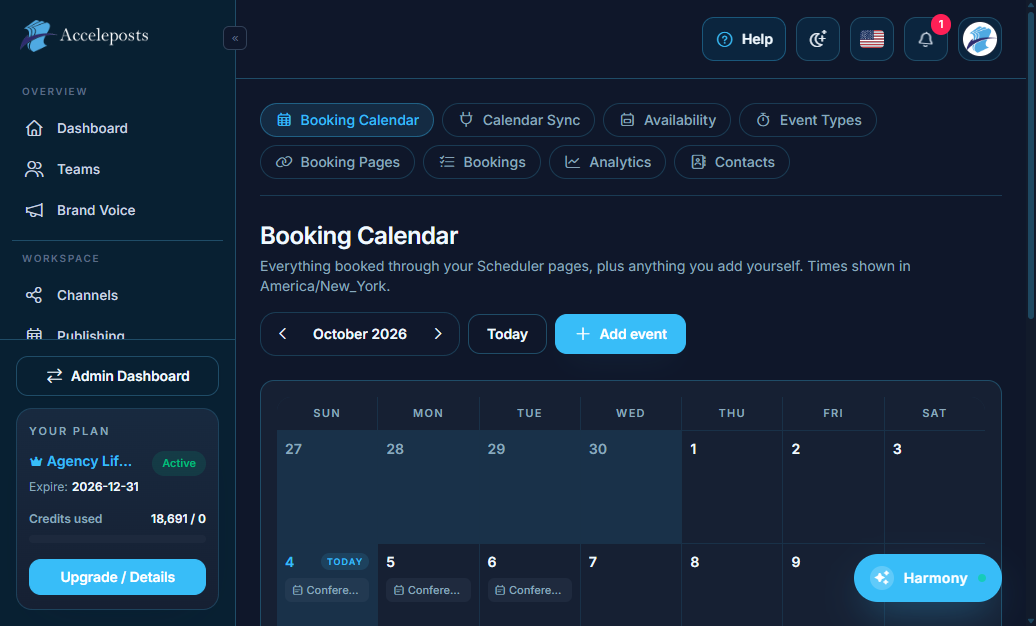
See every scheduled post across all connected channels in one calendar, instead of digging
through separate queues.
What It's For
The Scheduler gives you a month/week view of everything AccelePosts is about to publish —
regular posts, AI Publishing drafts, RSS auto-posts, and Bulk Post batches all show up on the
same timeline so you can spot gaps or clashes at a glance.
Where To Find This In AccelePosts
- Sidebar: **Workspace > Scheduler**
- Route: `/portal/scheduler/calendar`
Step-by-Step Workflow
- Open the Scheduler and pick the date range you want to review (day/week/month).
- Click any post on the calendar to preview its content, destination channel, and status.
- Drag a post to a new day/time to reschedule it without opening the full editor.
- Use this view before a big campaign to confirm you don't have two posts landing in the same
slot on the same channel.
Validation Checklist
- Every channel you expect to see content from actually has entries on the calendar.
- Rescheduled posts keep their original caption/media after being moved.
- Time zone shown matches your workspace's configured time zone.
Common Mistakes To Avoid
- Assuming a blank day means nothing is scheduled — check that the correct channel filter is
active first.
- Moving a post that's already mid-publish (status "publishing") can cause confusing duplicate
state; only reschedule posts still in "scheduled" status.
Troubleshooting
- If posts are missing from the calendar, confirm the originating queue (Publishing, AI
Publishing, RSS, Bulk Posts) actually created them successfully first.
- Refresh after reconnecting a channel — stale auth state can hide upcoming posts for that
channel until the page reloads.