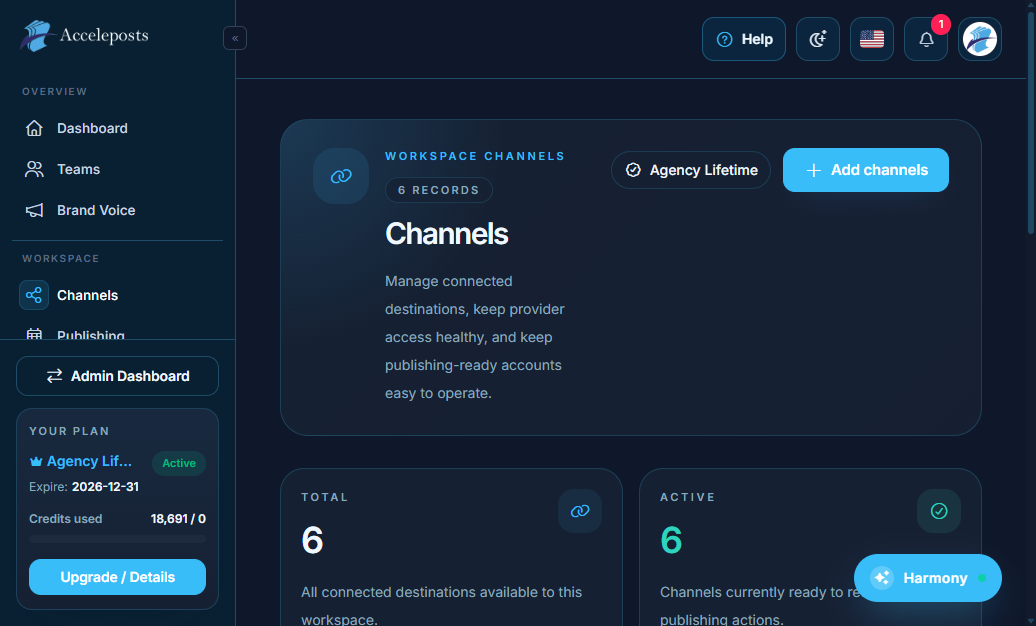
Connect Channels
Connect channel accounts correctly and keep tokens healthy for reliable publishing.
Who Should Use This Page
- Workspace owners configuring production workflows.
- Team members executing daily posting and monitoring tasks.
- Agency operators standardizing multi-client operations.
Where To Find This In AccelePosts
- Primary route pattern: portal.channels*
- Help deep-link target: /en/channels/connect-and-manage
- Best used alongside: channel connection and analytics verification pages.
Before You Start
- Confirm account/session is active and user role has required permissions.
- Validate all required channel integrations are connected.
- Ensure plan/credit availability for any AI or automation actions.
Step-by-Step Workflow
- Open the corresponding feature screen from the sidebar.
- Configure core settings first (account, channel, or workflow options).
- Save changes and run a controlled test action.
- Verify output in activity feeds, analytics cards, or destination channels.
- Capture results and adjust settings to improve reliability.
Validation Checklist
- The action completes without provider/API errors.
- Data appears in the expected dashboard or destination.
- No duplicate posts or misrouted channel activity is observed.
- Team members with proper roles can repeat the workflow.
Common Mistakes To Avoid
- Publishing before channel permissions/token health is verified.
- Skipping test posts after major setting or plan changes.
- Running automation without fallback review rules.
Troubleshooting
- Reconnect affected channels if auth scopes or tokens are stale.
- Re-check selected date ranges when analytics appears empty.
- Confirm queue/schedule timezone matches workspace expectations.
- Review logs and capture request IDs before escalating.
Related Pages
Revision Notes
- This page is part of the expanded operational docs pass for AccelePosts.
- Content focuses on practical execution, validation, and incident response.