Commerce Overview
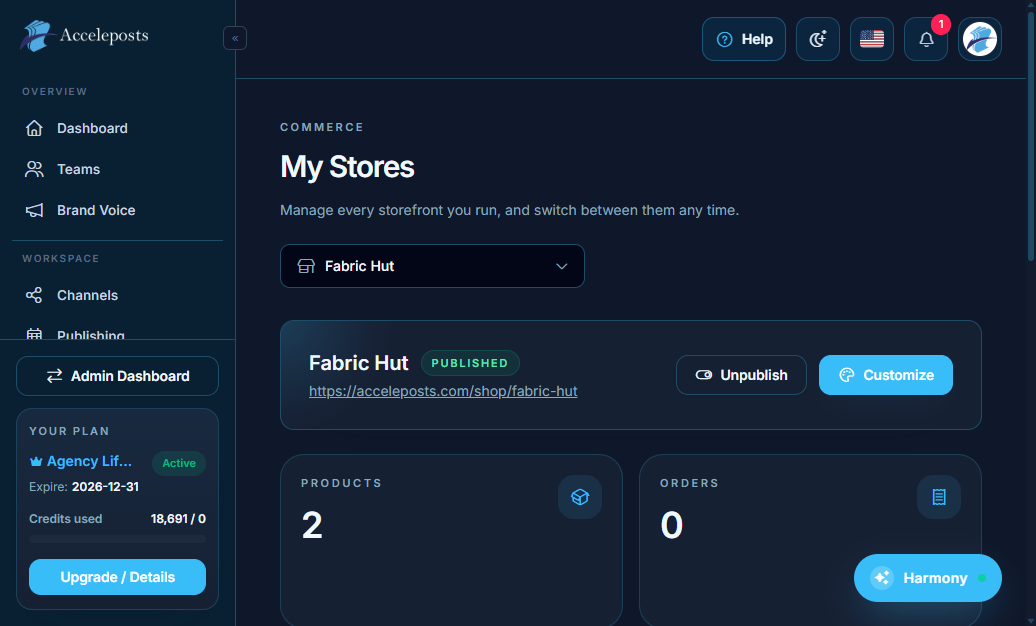
Run a storefront directly inside AccelePosts — products, categories, orders, customers,
coupons, store design, and payments all live under **Commerce**.
What It's For
Commerce lets you sell physical or digital products without leaving the platform you already use
to publish content. It's built to pair with your social channels: publish a post, link it to a
product, and track the resulting order in the same workspace.
Where To Find This In AccelePosts
- Sidebar section: **Commerce**
- My Stores: `/portal/commerce`
- Products: `/portal/commerce/products`
- Orders: `/portal/commerce/orders`
- Payments: `/portal/commerce/payments`
Step-by-Step Workflow
- Under **My Stores**, create or select the store you want to manage.
- Connect a payment provider under **Payments** (for example Square) before accepting real
orders.
- Add products under **Products**, organizing them with **Categories** and **Product Groups**.
- Set up **Coupons** for discounts or promotions tied to a campaign.
- Customize storefront look and feel under **Store Design**.
- Monitor incoming sales under **Orders** and manage buyer records under **Customers**.
Validation Checklist
- A real test checkout completes end-to-end and the order appears under Orders.
- The connected payment provider shows the correct account/location (not a sandbox left over
from testing).
- Product prices, images, and inventory counts match what's live on the storefront.
Common Mistakes To Avoid
- Publishing products before a payment provider is actually connected, blocking real checkout.
- Leaving a coupon active indefinitely after its campaign has ended.
- Editing a product's price without checking active carts/coupons that reference it.
Troubleshooting
- If checkout fails, verify the payment connection status on the Integrations page first.
- If an order is missing expected items, check whether the cart was created before or after a
recent login/session change — see the guest-cart troubleshooting note in Publishing.
- For shipping-related issues, confirm store address and shipping rules under Store Design.