Flow Builder
Design multi-step conversation flows visually, then attach them to a bot or postback button —
no code required.
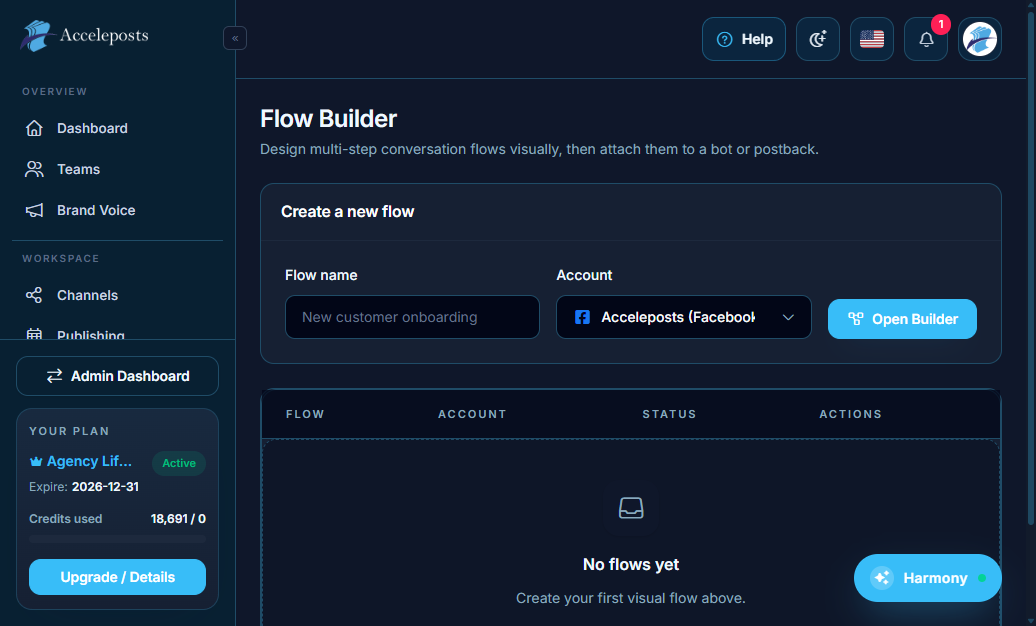
What It's For
A flow is a sequence of messages, questions, and branching logic that runs automatically when a
subscriber messages your connected account or clicks a button. Flow Builder is the drag-and-drop
canvas where you build that sequence.
Where To Find This In AccelePosts
- Sidebar: **Bot Manager > Flow Builder**
- Route: `/portal/bot-manager/flows`
Step-by-Step Workflow
- Enter a **Flow name** and choose the connected **Account** it should run on.
- Click **Open Builder** to enter the visual canvas.
- Add message, question, and condition blocks; connect them in the order the conversation
should follow.
- Use **User Input Flows** blocks when you need to capture a reply (email, order number, etc.)
and branch based on it.
- Save the flow, then attach it to the bot/account from the Bots list so it goes live.
- Send a real test message to the connected account to walk through every branch yourself.
Validation Checklist
- Every branch in the flow ends somewhere sensible (a final message, a handoff to Live Chat, or
a loop back to a menu) — no dead ends.
- Variables captured from user input are used correctly later in the flow.
- The flow responds within a few seconds on a live test message.
Common Mistakes To Avoid
- Publishing a flow with an unfinished branch left half-built.
- Reusing the same flow name across unrelated accounts, which makes the Bots list confusing.
- Hardcoding text that should reference a **Variable** (e.g. the subscriber's name).
Troubleshooting
- If a flow doesn't trigger, confirm it's actually attached to the account on the Bots page.
- If a button click doesn't advance the flow, check **Postback Manager** for a missing mapping.
- Use **Analytics** to see where users are dropping off, then simplify that step of the flow.