Products, Orders, and Customers
Manage your catalog and track every sale from a single table-based view.
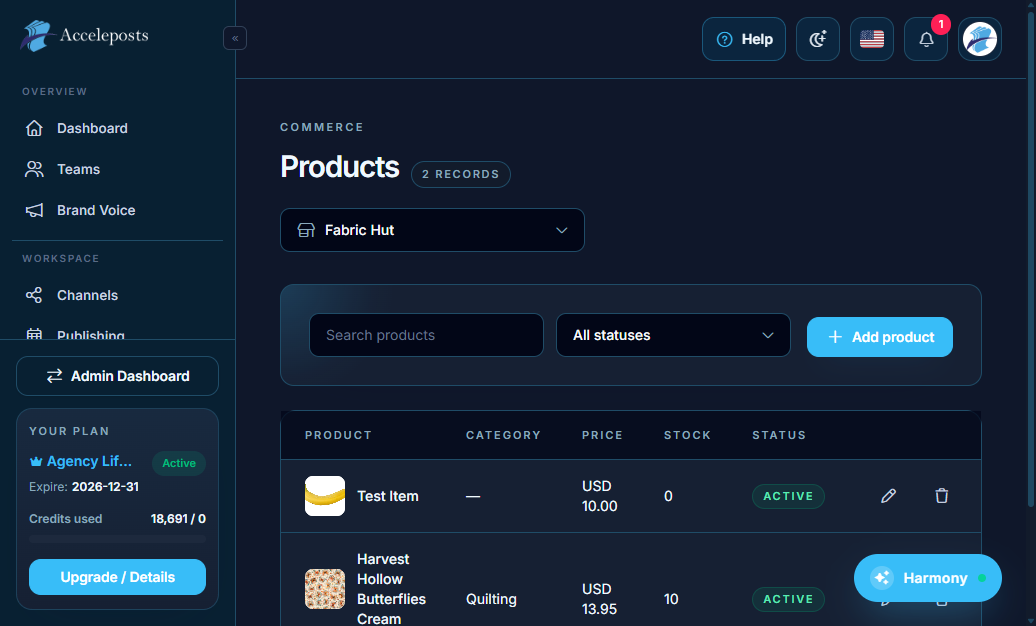
What It's For
This page covers the day-to-day Commerce workflow once your store is set up: adding and editing
products, organizing them into categories/groups, and following an order from checkout to
fulfillment.
Where To Find This In AccelePosts
- Products: `/portal/commerce/products`
- Categories: `/portal/commerce/categories`
- Product Groups: `/portal/commerce/groups`
- Orders: `/portal/commerce/orders`
- Customers: `/portal/commerce/customers`
Step-by-Step Workflow
- Create a product with a title, price, images, and inventory count.
- Assign it to one or more **Categories** so it's easy to browse on the storefront.
- Use **Product Groups** when you want to bundle or cross-sell related items.
- When an order comes in, open it under **Orders** to see line items, payment status, and
shipping details.
- Look up the buyer under **Customers** to see their order history for support requests.
Validation Checklist
- Every published product has a valid price and at least one image.
- Out-of-stock products are marked correctly so they don't accept new orders.
- Order statuses update as expected as payment and fulfillment progress.
Common Mistakes To Avoid
- Leaving a product's inventory count unmanaged, leading to overselling.
- Deleting a category that's still assigned to live products instead of reassigning them first.
- Editing an order's items directly instead of using refunds/cancellations where supported.
Troubleshooting
- If a product isn't showing on the storefront, confirm its status is published and it has a
category assigned.
- If an order shows "payment pending" indefinitely, check the payment provider connection under
Commerce > Payments.
- For customer disputes, cross-check the order's timeline against the payment provider's own
dashboard.